



Are you tired of annoying advertisements, unwanted pop-ups, and tracking requests while browsing the internet on your mobile phone? There is a simple solution you can try without installing a separate ad-blocking app.
AdGuard DNS is a DNS-based filtering service that can block many advertising, tracking, and malicious domains. Android users can enable it through their phone settings, while iPhone users can use a DNS configuration profile or another supported setup.
In this guide, you will learn how to enable AdGuard DNS step by step.
What Is AdGuard DNS?
AdGuard DNS is a DNS service that filters requests to known advertising, tracking, and other unwanted domains. When you visit a website or use an app, your device uses DNS to find the server associated with a domain name. AdGuard DNS can block requests to domains included in its filtering lists.
Benefits include:
- Block many ads in supported apps and websites.
- Reduce tracking from known tracking domains.
- Block some malicious and phishing-related domains.
- Reduce certain unwanted advertising pop-ups.
- Use DNS filtering without installing a traditional ad-blocking app.
Important: DNS filtering cannot block every advertisement. It may not remove ads served from the same domain as the content, and it cannot prevent every type of pop-up.
Method 1: Enable AdGuard DNS on Android
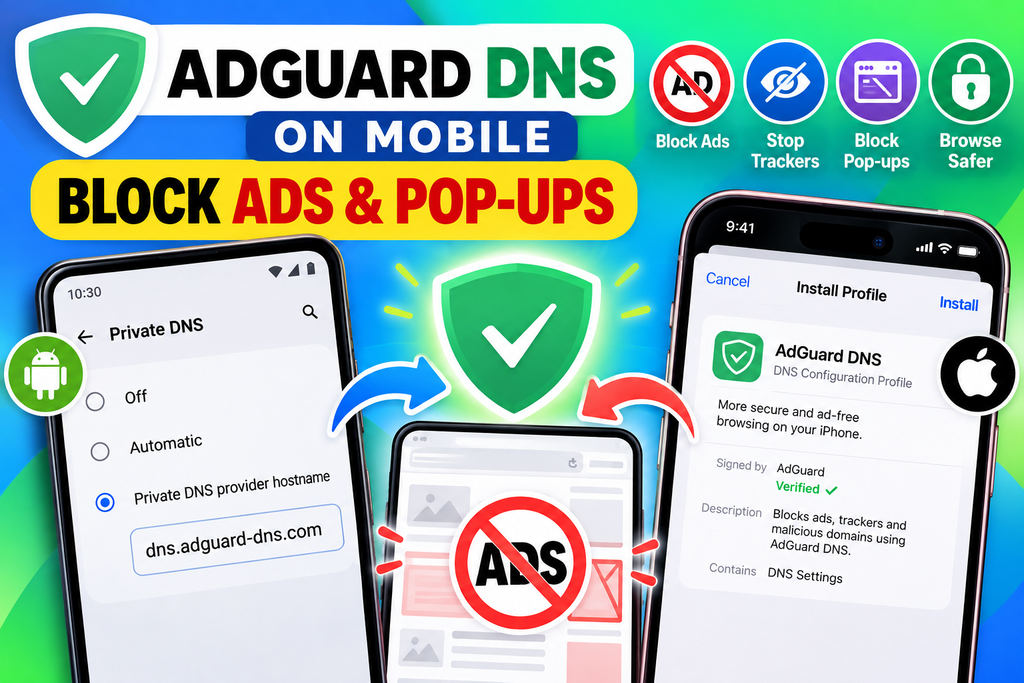
This is the easiest method for most Android phones, including Samsung Galaxy, Google Pixel, Redmi, Xiaomi, Realme, Vivo, and Oppo devices. The exact menu names may differ depending on your Android version.
Step 1: Open Settings
Unlock your Android phone and open the Settings app.
Step 2: Find Private DNS
Look for the Private DNS option.
Depending on your phone, you may find it under:
Settings → Network & Internet → Private DNS
On some Samsung phones, it may be under:
Settings → Connections → More connection settings → Private DNS
If you cannot find it, use the search bar at the top of Settings and type Private DNS.
Step 3: Select Private DNS provider hostname
Tap Private DNS provider hostname.
You may see options such as:
- Off
- Automatic
- Private DNS provider hostname
Choose the hostname option to enter a custom DNS provider.
Step 4: Enter the AdGuard DNS hostname
Type the following hostname exactly as shown:
dns.adguard-dns.com
This is the standard AdGuard DNS hostname for blocking ads and trackers.
Make sure there are no spaces before or after the hostname.
Step 5: Save the settings
Tap Save.
Your Android phone will now try to use AdGuard DNS over an encrypted DNS connection. If the hostname is entered correctly and the service is reachable, filtering can begin automatically.
Step 6: Test whether ad blocking works
Open your browser and visit a few websites that normally display advertisements.
You can also visit AdGuard’s official DNS page to learn more about the service:
Remember that some ads may still appear because DNS filtering does not block every advertising method.
Method 2: Enable AdGuard DNS on iPhone
On an iPhone, the Android Private DNS hostname method is not available in the same way. One option is to use an official AdGuard DNS configuration profile.
Step 1: Open the official AdGuard DNS website
Open Safari and visit:
Step 2: Find the DNS setup section
Look for the option to configure AdGuard DNS for your device. Follow the instructions for iOS and choose the appropriate configuration for your needs.
Step 3: Download the configuration profile
If the official setup offers a configuration profile, follow its download instructions.
Only download DNS profiles from a source you trust. A configuration profile can change network-related settings on your iPhone.
Step 4: Install the profile
Open Settings and look for Profile Downloaded, if shown. Alternatively, go to:
Settings → General → VPN & Device Management
Select the downloaded DNS profile and follow the on-screen instructions to install it.
The exact steps can vary by iOS version and by the configuration offered by AdGuard.
Step 5: Test your connection
Open Safari and visit a few websites. Check that websites load normally and that some known advertisements are filtered.
If the configuration stops working, revisit the official AdGuard DNS instructions to check the profile and connection status.
Standard DNS vs. Family Protection DNS
AdGuard offers different DNS options depending on what you want to block.
Standard AdGuard DNS
Hostname:
dns.adguard-dns.com
This option is designed to block ads and trackers.
AdGuard DNS Family Protection
Hostname:
family.adguard-dns.com
This option is designed to block ads and trackers while also providing protection against adult content and enabling Safe Search where supported.
Choose the option that best suits your needs.
How to Turn Off AdGuard DNS
If some websites or apps stop working correctly, you can temporarily disable custom DNS.
On Android:
- Open Settings.
- Search for Private DNS.
- Select Automatic.
- Tap Save.
Your phone will return to its automatic DNS configuration.
On iPhone, use the DNS configuration instructions for your installed profile to disable or remove it if necessary.
Troubleshooting: AdGuard DNS Is Not Working
If ads continue to appear or your internet connection stops working, try these steps.
1. Check the hostname
For standard ad blocking, confirm that you entered:
dns.adguard-dns.com
2. Check your internet connection
Switch between Wi-Fi and mobile data to see whether the problem affects one connection or both.
3. Check for VPN conflicts
Some VPNs, security apps, and other DNS services can override your DNS configuration. Check their settings if AdGuard DNS does not appear to be working.
4. Understand the limitations
DNS filtering cannot reliably remove every advertisement, including some YouTube ads, social media ads, and advertisements served from the same domains as website content.
5. Switch back to Automatic if needed
If websites fail to load, temporarily switch Private DNS to Automatic. This helps you determine whether the custom DNS setting is causing the problem.
Frequently Asked Questions
Does AdGuard DNS block all ads?
No. It blocks many ads and trackers, but some advertisements and pop-ups may still get through.
Do I need to root my Android phone?
No. Android’s Private DNS feature does not require root access.
Does AdGuard DNS work on mobile data?
Yes, it can work on both Wi-Fi and mobile data, provided the network allows the DNS connection and no other service overrides it.
Will AdGuard DNS make my internet faster?
It may reduce requests to advertising and tracking domains, but the effect on browsing speed depends on your network and the websites you visit.
Is AdGuard DNS free?
AdGuard provides free public DNS options. Some additional features and services may have separate requirements or pricing.
Will it block pop-ups inside every app?
No. It can block some pop-ups that rely on known advertising domains, but it cannot prevent every in-app overlay, notification, or deceptive website pop-up.
Final Thoughts
Enabling AdGuard DNS is a straightforward way to improve your mobile browsing experience without rooting your phone. On Android, simply open Private DNS settings and enter dns.adguard-dns.com.
On iPhone, follow AdGuard’s official iOS configuration instructions.
With the correct setup, you can block many ads and trackers and enjoy a cleaner browsing experience. Keep in mind that DNS filtering is not a complete replacement for a browser content blocker or safe browsing practices.
Try it today and enjoy a cleaner, less distracting mobile internet experience!